Adding Comments to PDFs: Master Your Annotations on Any Device
Discover how to add and manage comments on PDFs across devices. Learn tips for collaborating and reviewing with adding comments to pdfs.
Think of adding comments to a PDF as more than just scribbling with a digital red pen. It's a powerful way to communicate clearly and get work done faster. Once you get the hang of a few key tools, you can transform any static document into a living conversation where feedback is precise, easy to follow, and actually gets acted upon.
Why Smart PDF Commenting Is a Game-Changer
Before we dive into the "how-to," let's talk about why this matters. Good PDF annotation is about more than just highlighting a few lines. It’s about streamlining team feedback, clarifying complex edits on a business proposal, and avoiding the costly misunderstandings that always seem to pop up in vague email threads.
Imagine a design team dropping arrows and shapes directly onto a new layout to show exactly what needs to change. Or a professor guiding a student through a thesis draft by suggesting text replacements right where they belong. This kind of clear, contextual feedback creates a perfect audit trail of every decision, saving everyone hours of painful back-and-forth.
The Impact on Modern Workflows
Ever since Adobe introduced the format, commenting on PDFs has become a central part of how we collaborate digitally. The market for PDF editor software is expected to hit a massive USD 6.19 billion, largely because remote work has made efficient document review an absolute necessity. For industries that live and breathe documents, smart commenting can boost productivity by as much as 30%. You can check out the full market research on the growth of these tools for more details.
This infographic really breaks down the core benefits of getting your commenting workflow right.
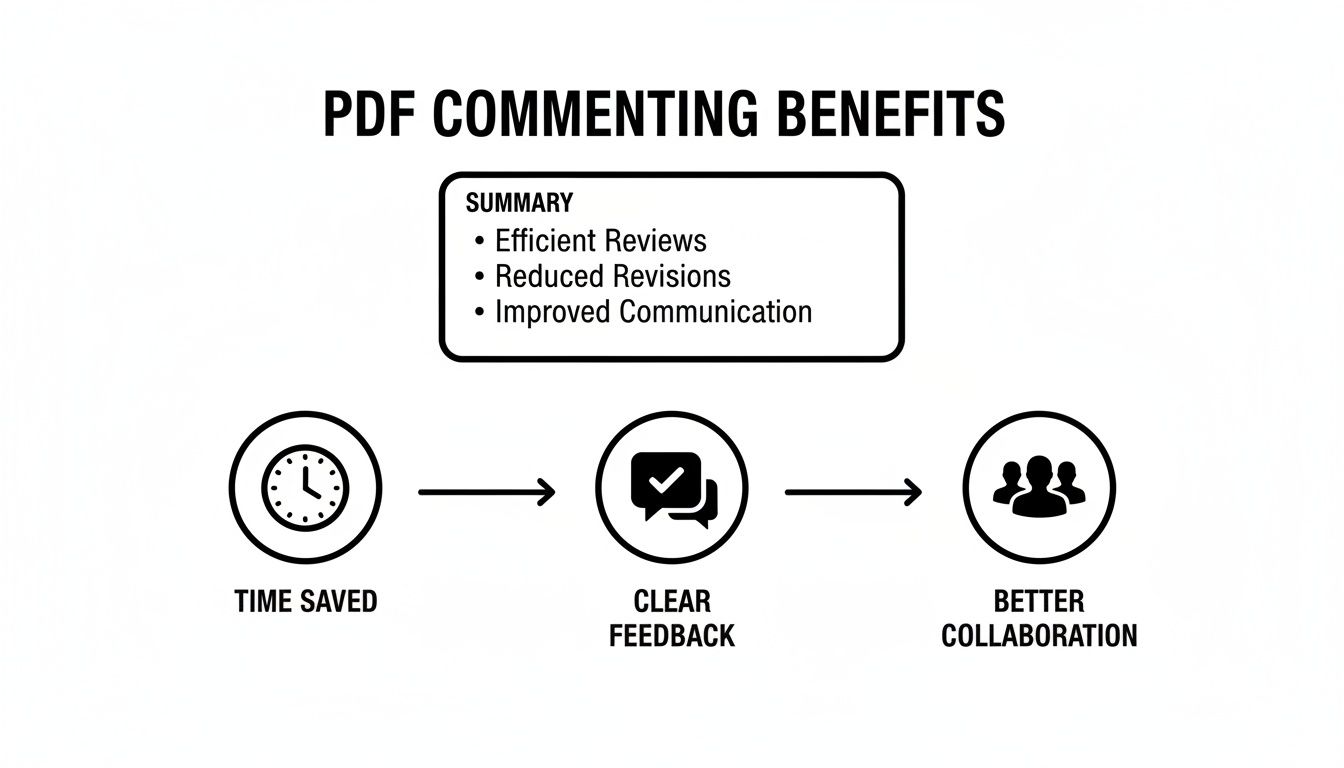
When you add it all up, these benefits lead to a faster, more accurate, and far less stressful way to get any project across the finish line.
By treating comments as a conversation rather than just corrections, you build a more effective review cycle. It’s about creating clarity and ensuring everyone is aligned on the next steps.
This mindset doesn't just improve the document; it strengthens how your team communicates. Well-placed comments can seriously reduce the mental effort it takes to figure out what feedback means, which is a big part of our guide on how to improve reading comprehension skills. Simply put, when you make feedback easier to digest, you make it easier to implement.
Unlocking Pro Features in Adobe Acrobat
While plenty of tools can handle basic PDF comments, Adobe Acrobat remains the industry gold standard for a reason. When you move beyond simple sticky notes, you discover a powerful toolkit that professionals swear by for giving feedback that's impossible to misinterpret. It’s all about using the right tool for the right job.
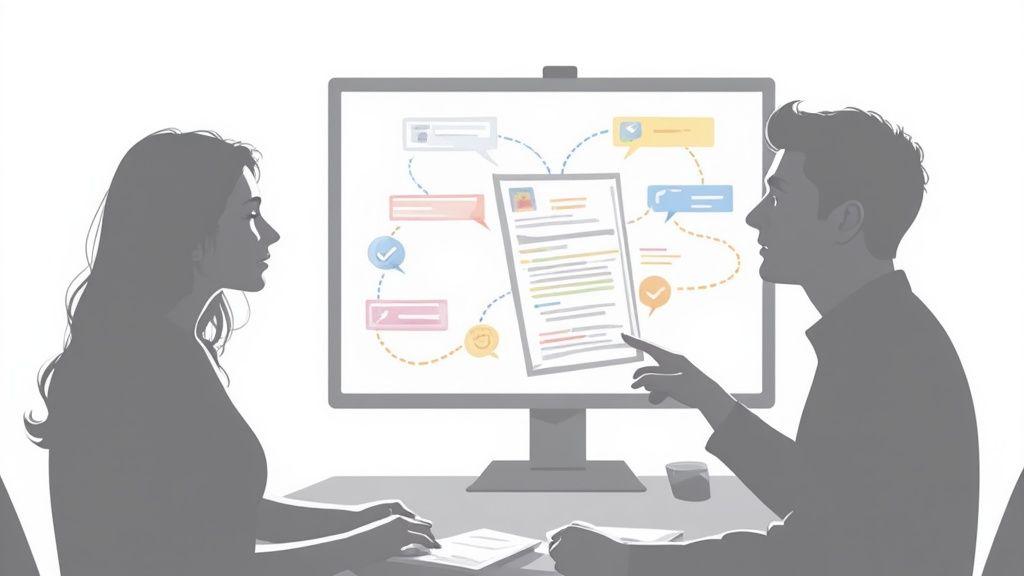
Instead of just highlighting a chunk of text, think about the specific action you want the reader to take. An editor working on a manuscript, for example, won’t just highlight an awkward sentence. They’ll use the Strikethrough tool to show what needs to be cut and the Insert Text tool to suggest a better replacement. It's so much more direct than a vague note saying, "rephrase this."
Mastering the Markup Toolkit
Acrobat's real strength is its range of markup options. These tools give your feedback a visual context that a plain text comment just can't match. You're showing, not just telling.
Here are a few pro tools you should definitely get comfortable with:
- Text Replacement: This is my go-to for precise edits. Just highlight a word or phrase, right-click, and choose "Replace Text." It crosses out the old text and adds your new suggestion in a pop-up, making the proposed change crystal clear.
- Drawing Markups: Need to point something out in a diagram or layout? The arrow, cloud, and rectangle tools are perfect. A project manager might draw a cloud around a whole paragraph that needs a once-over from the legal team.
- Stamps: The "Stamps" tool is great for formal review workflows. You can quickly add visual markers like "Approved," "Revised," or "Confidential" to signal a document's status at a glance.
Using these specific tools completely eliminates guesswork. Anyone looking at your feedback will know exactly what to do, which can dramatically speed up the entire revision cycle.
A well-managed comments list is the difference between organized feedback and digital chaos. Taking a few moments to filter, sort, and reply within threads turns a static document into a dynamic workspace.
From Simple Notes to Project Management
Making good comments is only half the battle; managing them effectively is just as crucial. The Comments List in Acrobat is your command center for feedback, especially when you have multiple people weighing in.
Instead of endlessly scrolling through annotations, you can instantly filter the list by author, date, or even comment type (like showing only text edits). This is a lifesaver for a team lead who needs to see just the feedback from the senior designer, for instance.
You can also create threaded replies, which keeps conversations tidy. If someone leaves a comment you disagree with, replying directly to their note keeps that entire discussion contained and easy to follow later.
Once an issue is handled, you can set its status to "Resolved" or add a checkmark. This visually signals that the task is done. For a project manager, this turns the PDF from a simple review document into a lightweight progress tracker, making sure no piece of feedback ever falls through the cracks.
Using the PDF Tools You Already Have: Mac and Web Browsers
You don't always need to hunt for specialized software just to add a few comments to a PDF. The truth is, some of the most effective tools are probably already on your computer, ready to go for quick feedback or personal note-taking.
For anyone on a Mac, the built-in Preview app is a surprisingly powerful and often overlooked gem. It's far more than a simple document viewer; it packs a full suite of markup features perfect for annotating research papers, signing contracts, or giving feedback on a draft.
Mastering Mac Preview for PDF Comments
Getting started is easy. Just open any PDF, and it will likely launch in Preview by default. To unlock its potential, look for the Markup Toolbar icon—it looks like a small pen tip inside a circle. Clicking this reveals a whole new set of options.
You'll find everything from a text highlighter to freehand drawing tools. Need to pop in a quick thought? The sticky note icon is your friend. Want to suggest a wording change without messing with the original text? The text box tool lets you place your comments anywhere on the page.
Here are a few ways I use Preview's features all the time:
- Highlighting Key Information: I'll often use the highlighter to mark up important passages in a dense study guide before I upload it to a tool like Feen AI for a quick summary.
- Adding Shapes and Arrows: When reviewing a design mockup, I can draw circles around key diagrams or use arrows to point out specific elements, which gives much clearer visual direction than just writing it out.
- Signing Documents: The signature tool is a lifesaver. You can create and store a digital version of your signature, making it incredibly easy to sign and return forms without ever having to touch a printer.
Working with the tools that come standard with your operating system, like Preview, saves a ton of time and reduces software clutter. It's really about working smarter with what you already have at your fingertips.
This approach is perfect for students reviewing lecture notes or professionals who just need to make a few quick edits on the fly.
Annotating PDFs Directly in Your Web Browser
But what if you're not on a Mac, or you just need to comment on a file you downloaded a second ago? Modern web browsers like Google Chrome and Microsoft Edge now have impressive built-in PDF viewers with annotation capabilities. This has been a game-changer for quick collaboration.
When you open a PDF in your browser, just look for the icons for drawing or adding text. In Chrome, a pen icon in the top-right corner reveals options to highlight or draw. Microsoft Edge goes even further, offering a more extensive set of tools, including a text highlighter, different colored pens, and the ability to add typed text comments.
Think about this scenario: a colleague emails you a report for a quick look. Instead of the old routine—download, open in another app, comment, save, and re-attach—you can do it all in one fluid motion. Simply open the PDF in your browser, add your notes, and then save the newly annotated version right from the browser window.
This method of adding comments to PDFs is incredibly efficient for fast-paced workflows where all you need to do is provide immediate feedback without the hassle.
Adding Comments to PDFs on Your Phone or Tablet
In a work culture that's always on the move, you can't always wait until you're back at your desk to give feedback. Being able to comment on PDFs from anywhere isn’t just a nice-to-have anymore—it's a critical part of getting things done. Your phone and tablet have become serious work tools, perfect for reviewing documents whether you're on a train or just waiting for a meeting to start.
This shift is reflected in the market, too. Annotation and markup features are a huge reason the PDF software market is projected to jump from $2.15 billion to $5.72 billion. A big part of that is the 200% growth in cloud-based tools since 2020, which is what makes mobile commenting so seamless. This trend is especially noticeable in places like the Asia-Pacific region, where mobile-first workforces are driving a boom in digitization. You can find more details on these PDF trends and their global impact.
Choosing the Right Mobile App
Let's be honest: when you're working on a small screen, the user interface is everything. A clunky app is a deal-breaker. That's why apps like Adobe Acrobat Reader and Xodo PDF Reader & Editor stand out—they've really nailed the mobile experience with touch-friendly controls that make adding comments feel surprisingly natural.
- Adobe Acrobat Reader: If you use Adobe on your desktop, the mobile app will feel immediately familiar. It offers solid cloud integration, so your work syncs effortlessly across all your devices. The commenting tools are just as intuitive as the desktop version.
- Xodo PDF Reader & Editor: This is a fantastic alternative, known for being fast and packed with features, even in the free version. It really shines with real-time collaboration, letting you and your team comment on the same cloud document at the same time.
Of course, none of this matters if your device isn't working. It's always a good idea to know how to troubleshoot iPhone liquid damage or other common problems. A reliable device is ground zero for a productive mobile workflow.
A Practical Mobile Commenting Scenario
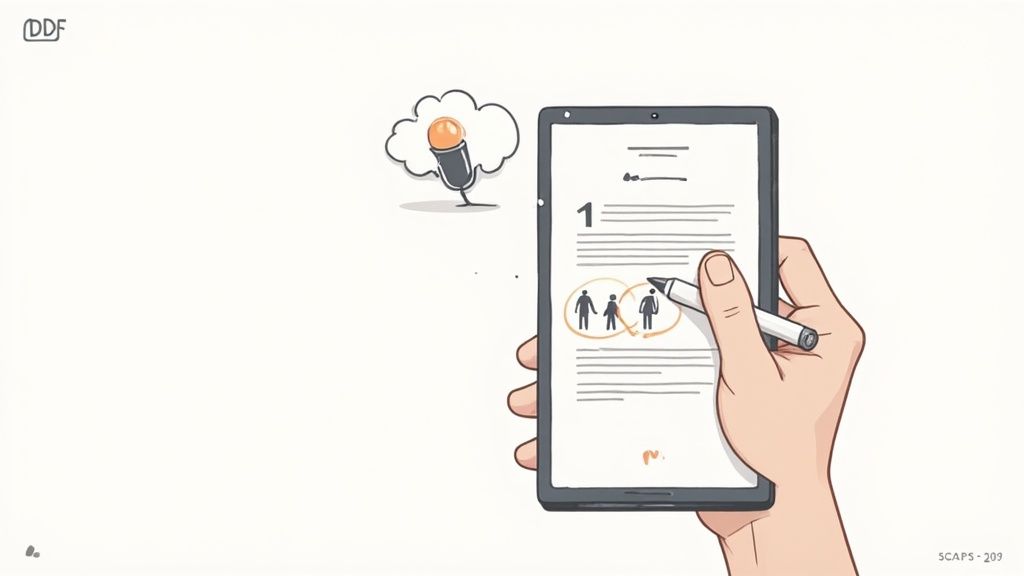
Picture this: a manager is on her morning commute, reviewing the quarterly financial report on her iPad. Instead of just reading, she grabs her stylus and circles a few key figures that seem off. Then, she taps to add a quick voice note right on the PDF, explaining her concerns with a level of detail that would be a pain to type on a tiny keyboard.
A stylus and voice notes can turn mobile PDF commenting from a simple markup task into a genuinely rich feedback session. This approach adds a layer of clarity that typed comments just can't match.
Once she's done, she saves the file. Because of cloud syncing, her team back at the office gets the annotated document instantly. They can see her circles, listen to her voice notes, and start working on the revisions right away. This kind of seamless process cuts out delays and keeps projects moving, no matter where anyone is.
This is also a great way to prep a document for the next step. For example, after adding your initial thoughts, you could upload it to a PDF summarizer to get a high-level overview before you dive back in for a final, detailed review.
Better Collaboration with Smart Commenting Habits
Having the right software is just the beginning. Truly effective collaboration comes down to a skill: turning a simple markup into a productive conversation. It’s about moving beyond just dropping random notes on a document and building a clear, actionable system that your entire team actually understands. Get this right, and you'll speed up approvals and seriously elevate the quality of your work.
The massive shift to remote work really put these skills to the test. During the pandemic, e-signature usage—which is often the final step after a ton of PDF commenting—shot up by a wild 320%. This trend cemented smart annotation as a must-have for any distributed team, and it's a big reason the global PDF software market is now worth $4.8 billion. Cloud-based tools are now the heart of this workflow, making it possible to collaborate seamlessly across time zones. You can dive deeper into the rise of PDF collaboration and see just how big its impact has been.
Create a Clear Communication System
Where do most review cycles fall apart? Ambiguity. To head this off, you need to establish a simple commenting protocol that everyone agrees to follow. A basic color-coded system, for example, can do wonders for clarifying the type and urgency of feedback.
Here’s a simple system I've seen work really well:
- Yellow Highlights: For suggestions or minor wording tweaks. These are ideas, not demands.
- Red Strikethroughs: For critical fixes only—factual errors, typos, or things that absolutely must be removed.
- Blue Text Boxes: Great for general questions or bigger-picture comments that need a team discussion.
A system like this immediately tells the reader how to prioritize their revisions. They see red, they know it’s a mandatory fix. They see yellow, they know it’s a point for creative discussion.
The goal is to make your feedback easy to act on. A structured system removes the guesswork, allowing collaborators to spend their energy on the work itself, not on deciphering your notes.
Keep Conversations Organized and Actionable
Modern PDF tools are built to keep discussions from getting messy. Instead of starting a brand-new comment for every little thought, get in the habit of using the reply function. This creates threaded conversations, keeping all related feedback bundled together. Trust me, you'll thank yourself when you have to revisit the document weeks later and can actually follow the context.
Also, don't sleep on @mentions, especially if you're using a cloud platform like Adobe Document Cloud. If you need a specific designer’s eyes on a layout change, just tag them. An @mention sends a direct notification, which is way more effective than just hoping they’ll stumble upon your comment in a sea of other notes.
This kind of organization is a lifesaver, especially when you're marking up a dense document. A well-annotated PDF makes a perfect starting point before you summarize a book or a long report with an AI tool, ensuring all the key human insights are captured first. Adopting these smart habits for adding comments to PDFs doesn't just make things faster—it makes your entire workflow more collaborative and effective.
Got a Question About PDF Commenting?
Once you start adding comments and notes to your PDFs, you'll probably run into a few little quirks. Don't worry, it happens to everyone. Getting past these common snags is all part of mastering your workflow, so let's walk through some of the questions I hear most often.
"Why Won't My PDF Let Me Add Comments?"
This is, without a doubt, the number one problem people face. When you can't add a comment, it's almost always one of three things.
First, check for security restrictions. The person who created the PDF can lock it down to prevent comments. You can usually see if this is the case by digging into the file properties. In Adobe Reader, for instance, you'd go to File > Properties > Security to see what's allowed.
It could also be that you're using a super simple PDF viewer that just doesn't have the tools. Finally, if the PDF is essentially a flat picture—like a scanned document that hasn't been run through Optical Character Recognition (OCR)—you can't select and highlight text. But even then, you should still be able to slap a sticky note or draw a circle on top of the page.
"If I Send This PDF, Will Everyone See My Notes?"
Yep, they sure will. As soon as you hit "Save," your annotations become part of that PDF file. When the next person opens it, they'll see all your highlights, notes, and scribbles exactly as you left them. That's the whole point of using PDFs for collaboration, after all!
Need to send a clean copy without your private thoughts attached? You have a couple of options:
- Just delete them: Go through and remove your comments before you send it off.
- "Flatten" the PDF: This is a neat trick. It essentially merges your comments into the fabric of the page itself, making them permanent and un-editable.
The fact that anyone with a standard PDF reader can see your comments is what makes it such a bulletproof format for group reviews. No special software needed, no compatibility issues—the feedback just works.
"How Can I Get a List of All the Comments at Once?"
When you're staring at a document with 50 different comments, clicking through them one by one is a real drag. This is where a more powerful tool like Adobe Acrobat really shines. It lets you generate a neat comment summary, which is a total lifesaver for turning feedback into an actual to-do list.
Head to the "Comment" panel, find the little options menu (usually three dots), and look for "Create Comment Summary." This feature whips up a brand-new PDF that lists out every single comment, often with a little snapshot of its location in the original document. It's perfect for creating a revision checklist or just keeping a clean record of all the feedback.
"Can I Still Add Comments if a PDF is Locked for Editing?"
It depends on how it's locked. The creator can set different permissions. It's actually pretty common for a PDF to be locked down to prevent you from changing the main text or moving images around, while still allowing you to add comments or fill out forms.
There's no guessing, though. You have to check the document's security properties to see the official list of what's allowed and what's not. If commenting has been specifically turned off, then you're out of luck.
After you've marked up your research papers and study guides, why not take your learning one step further? Feen AI can summarize your annotated PDFs, turning all those highlights and margin notes into focused takeaways and clear explanations.
Recent articles

What is the difference between mitosis and meiosis? This guide provides a clear comparison of purpose, stages, and outcomes for students and curious minds.

What is the difference between speed and velocity? what is the difference between speed and velocity explained in plain terms with helpful examples.

Learn how to solve inequalities step by step. This guide covers linear, absolute value, and quadratic inequalities with clear examples and real-world tips.

Struggling with homework? This guide shows you how to convert units in chemistry with dimensional analysis. Master moles, grams, concentration, and more.

Struggling with 'what is conservation of energy'? This guide breaks down the core law with simple analogies, worked examples, and real-world applications.

Discover what is dimensional analysis in chemistry and master the factor-label method with clear, step-by-step examples.